Instant Switch
Swap Pinterest between light and AMOLED styling with a single click.
Clean dark mode styling for Pinterest with fast updates, stable behavior, and extra tools like dim controls and a private local vault system.
Built and maintained by a solo developer. If Pinterest changes something and breaks the extension, bug reports help me patch it faster.
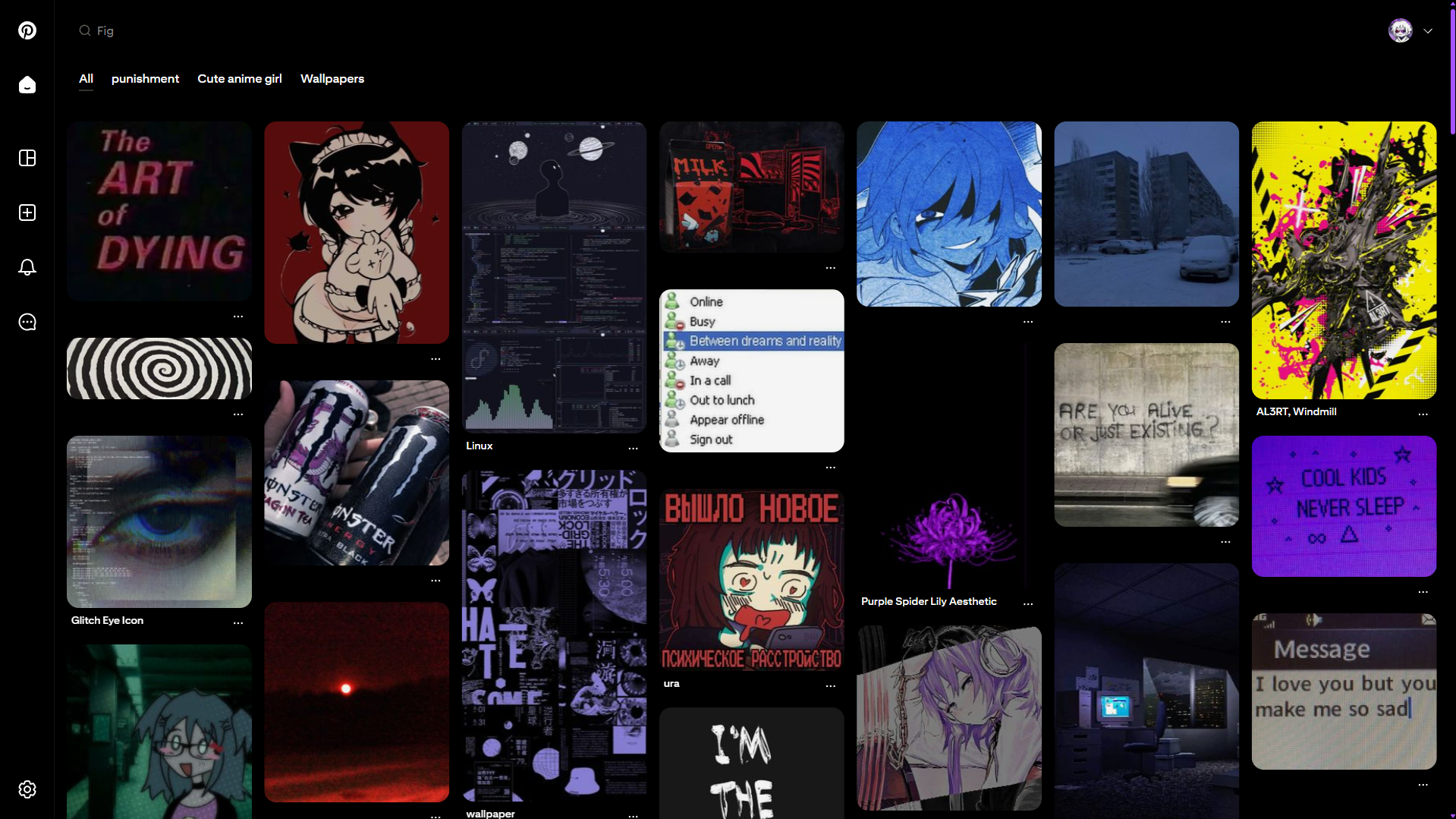
Swap Pinterest between light and AMOLED styling with a single click.
Homepage UI if it ever breaks will always be patched (unless it's not possible or not prioritized yet)
Reduce screen harshness with an adjustable dim layer for a softer AMOLED browsing feel.
Keep selected pins stored privately in your browser with simple organization and backup support.
Click any image to preview it in full size.
AMOLED Theme set by default
Can be enabled from settings
Private saved pins area stored locally in your browser.
Extra comfort layer for even darker viewing at night.
The Vault is a private local storage system built into the extension. It is meant for saving pins for your own use inside your browser.
The Vault lets you save Pinterest items into a local collection so you can revisit, organize, and manage them without depending on Pinterest boards alone.
Saved items stay in your browser storage, which means the data is kept locally on your side unless you manually export or move it.
When the extension detects a supported save action, the selected pin can be added into the Vault. This creates a local entry containing the important pin information needed for later viewing.
The saved data is written into browser storage on your device. That means your Vault is tied to your browser profile unless you export it.
Inside the Vault page, saved entries are displayed in a visual grid so you can browse them quickly, open previews, and manage your collection.
You can assign tags, rename categories, search through saved content, and keep everything grouped in a way that is easier to navigate later.
The Vault supports import and export so you can make backups of your saved data, transfer it, or restore it if needed.
Choose your browser. Both builds ship the same main features.



Chrome: Store install is recommended. For manual install, open chrome://extensions, enable Developer mode, click Load unpacked, and select the extension folder.
Firefox: Install from the Add-ons page, or use temporary loading during development/testing when needed.